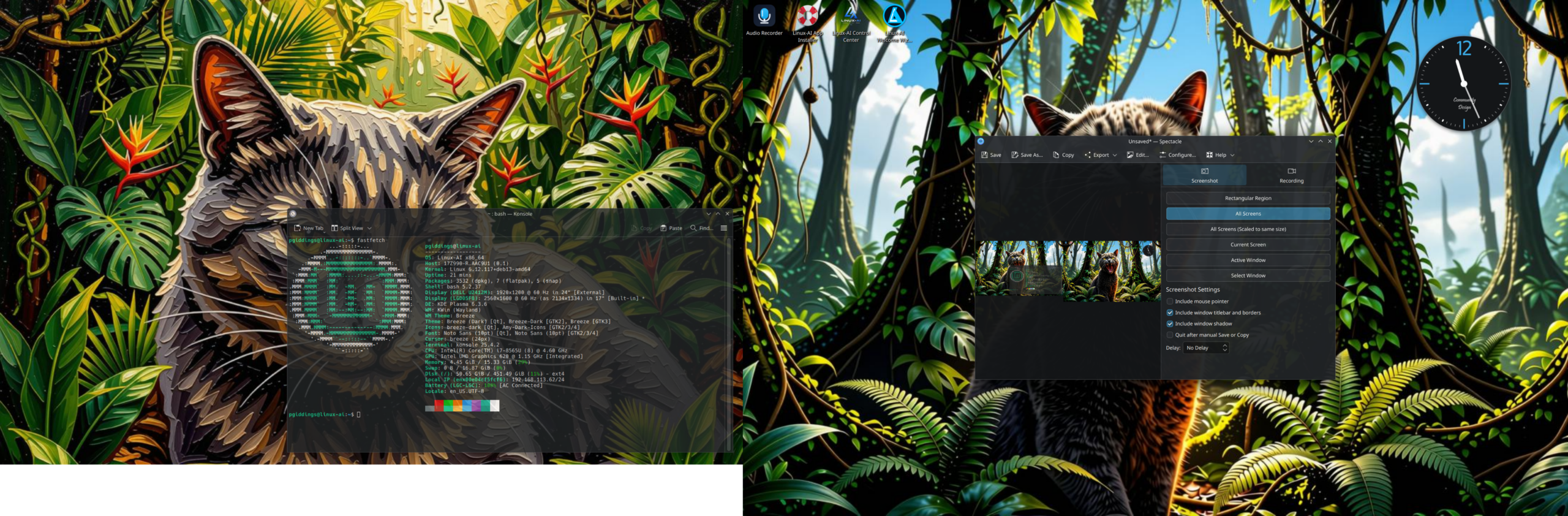
From Cinnamon to Crystal: Installing KDE Plasma kde-full on Linux-AI Nevaeh and Ricing It Until It Feels Like Yours
A hands-on journey into turning a beginner-friendly, AI-assisted Mint-based distro into a fully riced Plasma 6 workstation.
Nevaeh — heaven spelled backwards — is a fitting name for Linux-AI OS 2.0. It ships as a friendly, Mint-flavored desktop with an AI assistant baked in, and it defaults to Cinnamon. Cinnamon is lovely. But some of us wake up one day and think: what if every pixel on this machine were mine?
That’s where KDE Plasma comes in. And not just any Plasma — the whole enchilada: the kde-full meta-package. This post walks through the install on Nevaeh, then the genuinely fun part — ricing the desktop until nobody else’s machine looks like it.
Why kde-full?
Debian-family distros (Nevaeh is built on Mint/LMDE lineage) offer three KDE meta-packages:
| Package | What you get |
|---|---|
kde-plasma-desktop | Bare Plasma shell + file manager. ~1 GB of tinkering ahead. |
kde-standard | Plasma + Dolphin, Konsole, a sensible app set. |
kde-full | Plasma + the entire KDE application suite: Krita, Okular, Ark, Kate, KDE PIM, Games, utilities — everything. |
kde-full is big — expect a download measured in gigabytes and several hundred packages. If you want zero post-install app hunting, it’s worth it. If you prefer a lean system, swap in kde-standard below and the rest of this guide still applies.
Step 1 — Prep before you leap
Before pulling a desktop environment-sized chunk through apt:
sudo apt update && sudo apt full-upgrade -y
Take a Timeshift snapshot (Nevaeh inherits Mint’s Timeshift setup). If anything gets weird mid-merge between desktop environments, you can roll back instead of reinstalling. Also keep the Cinnamon session installed for now — you can decide later whether to keep both, which is perfectly fine.
Step 2 — Install
sudo apt install kde-full
During the install, apt may ask you to choose a display manager. Pick SDDM — it’s Plasma’s native greeter and integrates properly with the lock screen.
When it finishes, log out. At the login screen, select the gear/session icon and choose Plasma (X11) or Plasma (Wayland). On a Mint/Debian base with Intel or AMD graphics, Wayland is the modern choice; NVIDIA users may prefer X11 depending on driver vintage.
Two practical notes from the merge-with-Cinnamon school of hard knocks:
- Don’t panic at the settings menu. You’ll now have two suites of System Settings modules and some duplicated apps (two text editors, two terminal options, etc.). That’s normal for a dual-DE setup. Sort it out later.
- If Breeze feels like it’s fighting Cinnamon’s icons, install Papirus early:
sudo apt install papirus-icon-theme.
Reboot, log into Plasma, and breathe. You’re officially in.
Step 3 — Ricing: making it yours
“Ricing” is Linux slang for obsessively customizing your desktop until it’s a personal statement. Plasma is arguably the best canvas in the Linux world for this. Here’s the workflow I use, roughly in order.
3.1 Global Theme first, details second
Open System Settings → Colors & Themes → Global Theme. Browse the “Get New Global Themes…” button — it pulls straight from the KDE Store. Popular foundations include Layan, Utterly Nord, and Colloid. Don’t overthink it: your global theme is the base coat, and you’ll repaint details over it.
3.2 Decals: icons, cursors, fonts
Consistency here sells the whole look:
- Icons: Papirus is a classic (
sudo apt install papirus-icon-theme), Tela and Colloid are slicker. Set under Colors & Themes → Icons. - Cursors: Bibata and Sweet are the usual suspects. Download from the KDE Store, or install manually into
~/.local/share/icons/. - Fonts: Most ricers land near two choices — a clean sans (Inter, Fira Sans) for UI and a monospace (JetBrains Mono, Fira Code) for terminals and Kate. Nerd Font patched variants give you glyphs for status widgets later.
Small screens of polish compound. Rounded window corners, a subtle drop shadow, consistent 4–8 px padding — boring in isolation, transformative together.
3.3 Per-application theming with Kvantum
Global themes get you 80% there; Kvantum gets the last 20%. It’s a Qt theme engine that lets you control translucency, corner radii, and per-widget styling with surgical precision.
sudo apt install qt6-style-kvantum qt6-style-kvantum-l10n kvantum
(On older Debian bases the package names may differ slightly — qt5-style-kvantum for Qt5 apps.) Launch Kvantum Manager, pick a theme, then set System Settings → Appearance → Application Style → Kvantum. Mix, match, adjust opacity sliders until the window chrome melts into your wallpaper.
3.4 Panels, widgets, and layout alchemy
Plasma’s killer feature is that panels and widgets are endlessly editable. Long-press the desktop and enter Edit Mode:
- Floating panels with adjustable width, position, and auto-hide.
- Widgets from the KDE Store: the Media Player widget, Activity Pager, compact system monitor sensors, a minimal analog clock, world clocks, weather.
- Alternate with
Meta+Tabbetween Desktop/Folder views.
A clean recipe many ricers use: one thin floating top bar with a global menu + system tray + clock, and a centered dock-style bottom panel for pinned apps. Hide both with hotedges so screenshots look like pure wallpaper.
3.5 Terminal ricing: Konsole + shell prompt
Plasma’s default terminal is respectable out of the box, but with fifteen minutes of effort it becomes part of the aesthetic:
- In Konsole’s profile settings, use your Nerd Font monospace font and bump the line spacing slightly — it reads beautifully.
- Pick a color scheme from Konsole’s built-in gallery or import one from Kitty/iTerm-style schemes floating around (Dracula, Catppuccin, Gruvbox all have KDE ports).
- Add a shell prompt engine like Starship (
starship) for an instant, informative, and gorgeous prompt with zero shell-config gymnastics.
3.6 Effects and feel
Under Window Management → Desktop Effects, the usual rice toggles:
- Blur (with strength/noise tuned for the “frosted glass” look),
- Wobbly Windows (classic, contentious, delightful),
- Overview and Desktop Grid bound to gestures,
- Magic Lamp minimize effect, if you miss Genie.
Then walk through Keyboard Shortcuts — remapping your muscle memory (screenshot region, tiling shortcuts, app launcher) is where “riced desktop” quietly becomes “riced workflow.” Pair it with KRunner (Alt+Space) as your everything-bar, and half your desktop icons can disappear forever.
3.7 Autostart the finishing touches
System Settings → Autostart gets you set for the final layer: fix mouse acceleration curves, enable Night Color, set compositing preferences for Wayland/X11, and pin your workspace defaults so every reboot lands exactly where you want it.
Step 4 — Tidy up (optional)
Once you’ve lived in Plasma for a week, decide whether Cinnamon stays. Many folks keep both sessions — it’s handy fallback if a Plasma update misbehaves. If you want the disk space back and are confident:
sudo apt purge cinnamon* nemo* muffin*
sudo apt autoremove
Do this only after you’re sure, and only after a fresh Timeshift snapshot. Removing a DE is the one step in this guide that can genuinely bite you if done hastily.
Final thoughts
Linux-AI Nevaeh’s whole pitch is that the OS should adapt to you — and honestly, few things embody that philosophy like a fully riced Plasma desktop. The AI assistant handles the boring system maintenance; you get to spend your energy on the fun parts: blur radii, icon packs, and debating wobbly windows with strangers online.
Start with kde-full if disk space is cheap. Rice in layers — global theme, then icons/fonts, then Kvantum, then layout. Take screenshots along the way, because your first riced Plasma setup deserves before-and-after evidence.
Welcome to the dark side. It has better blur.
Leave a Reply